Employee scheduling software screenshot tour
Through a series of screenshot slideshows, this tour shows you the most popular features of Snap Schedule. For best results, a high speed Internet connection is recommended.
Intuitive, easy to use employee scheduling software
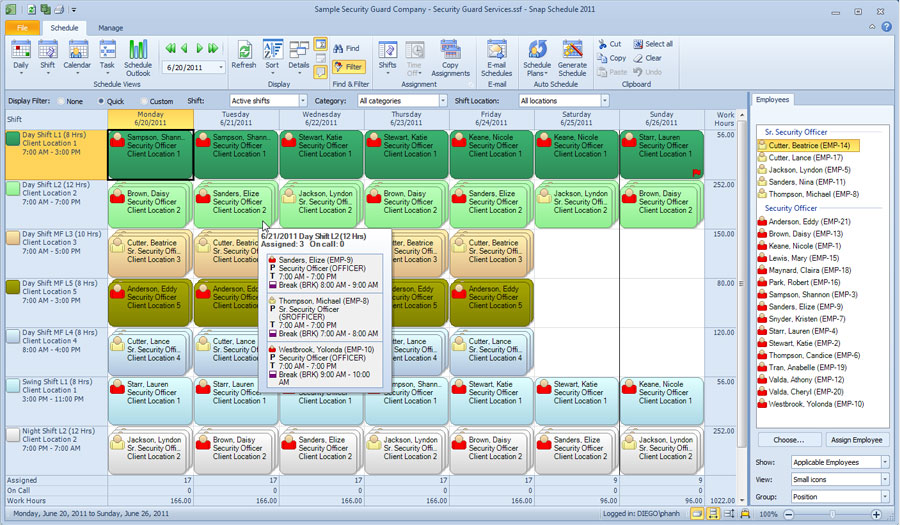
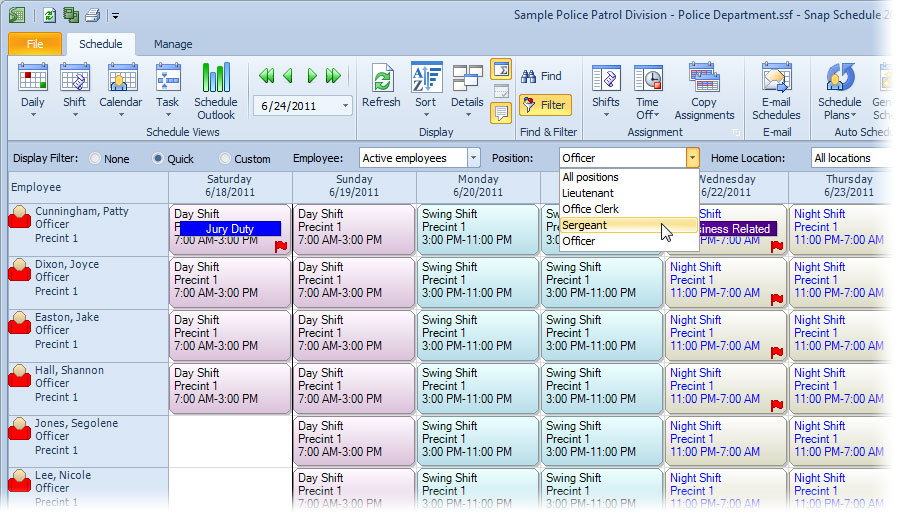
You already know how to use Snap Schedule software, thanks to its familiar Microsoft Office user interface style. Commands for tasks you frequently perform are logically organized and plainly visible in the Ribbon. Color coded shifts, time off reasons, and staff positions make it easy to organize assignments and identify shift patterns.

Schedule unlimited number of employees, shifts, and time off
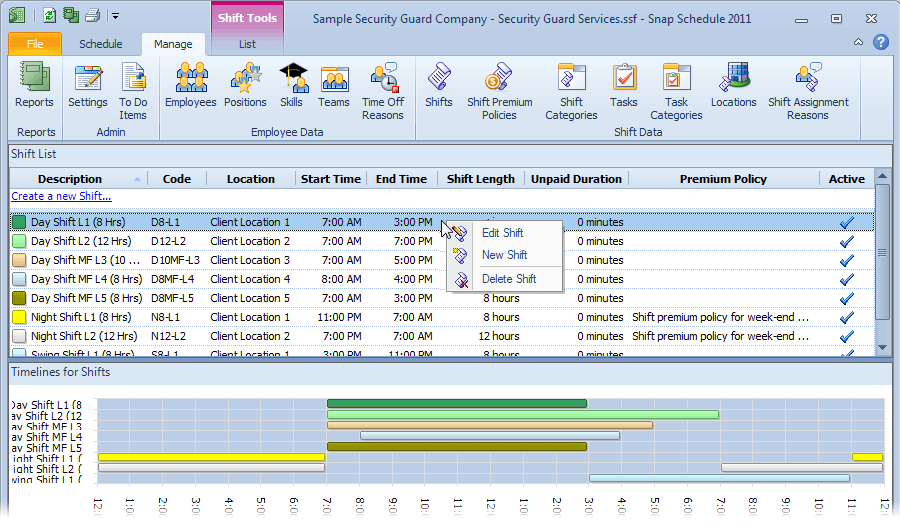
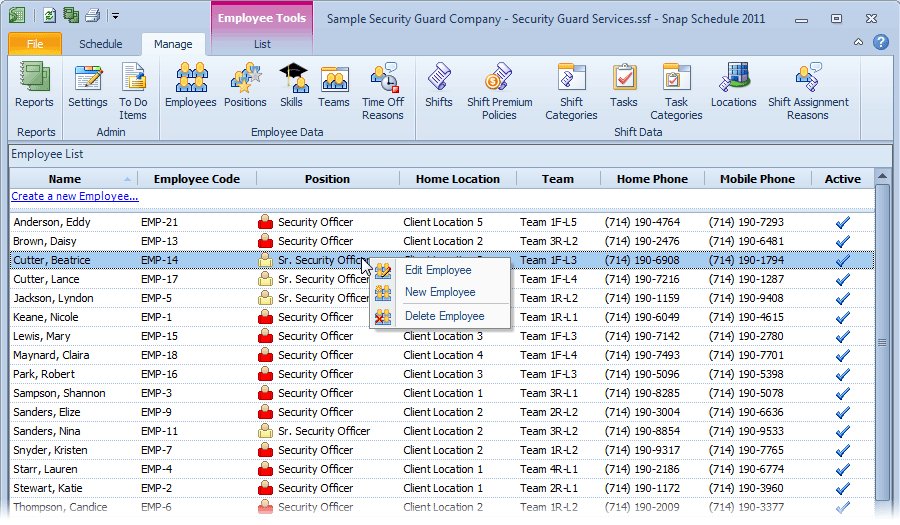
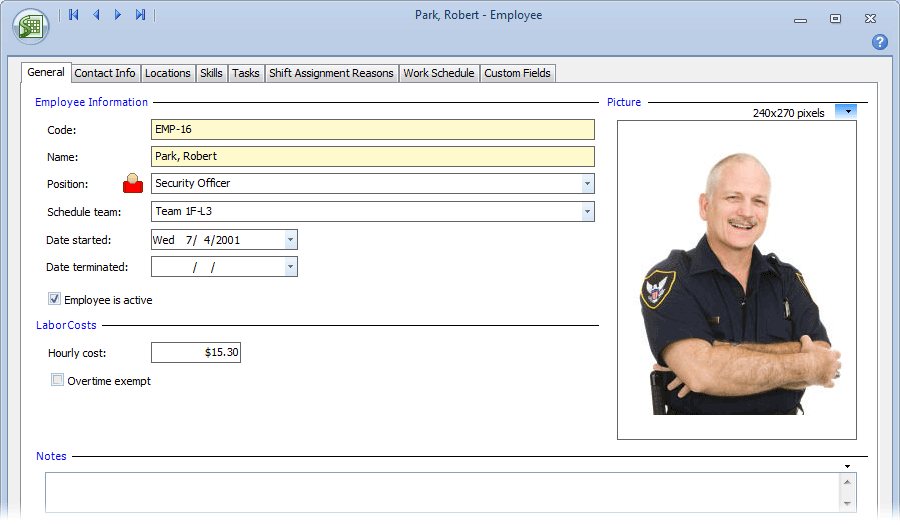
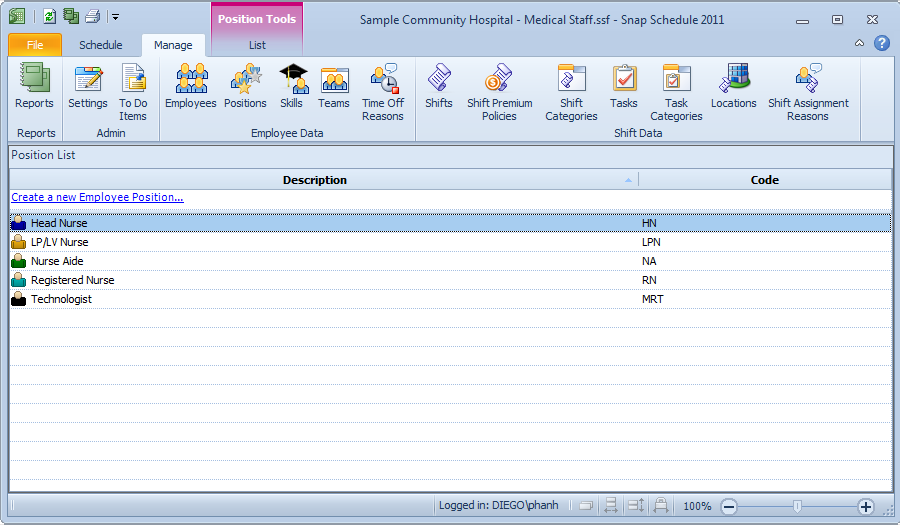
There are no limits on the numbers of employees, positions, shifts, locations and assignments you can create. Keep scheduling and employee information in one place for easy access. It’s easy to insert a person’s photo into their employee record as well as contact information, work locations, skills, availability, and work hour constraints. Use the 25 custom fields to store anything you like – from employment history such as start dates, review dates, training dates, to certification renewal dates.
Multi-view employee scheduling software
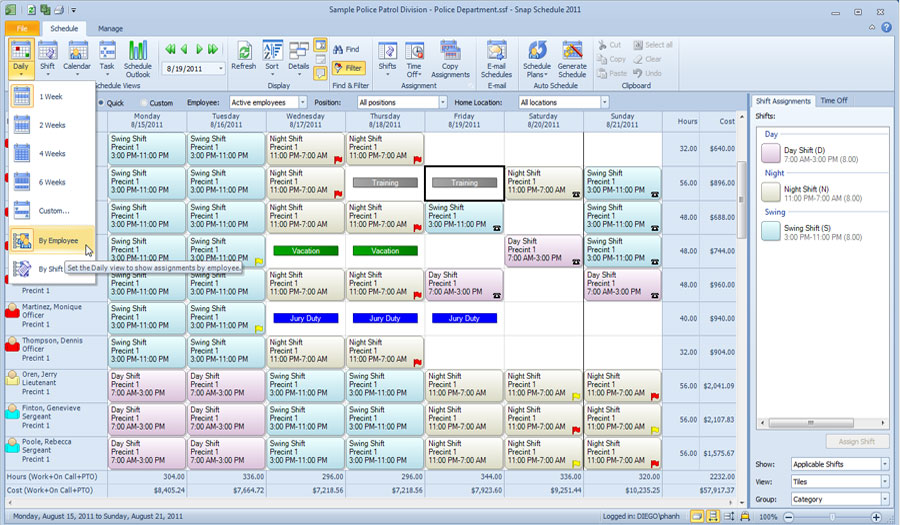
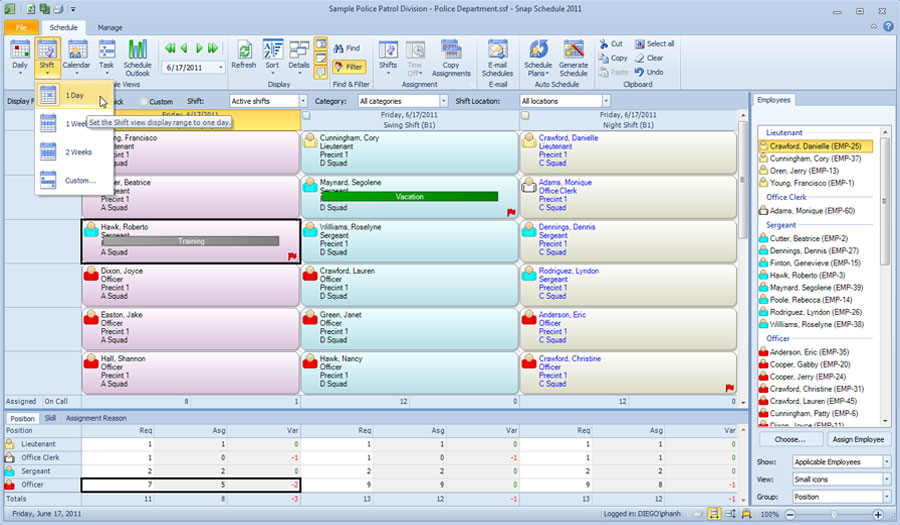
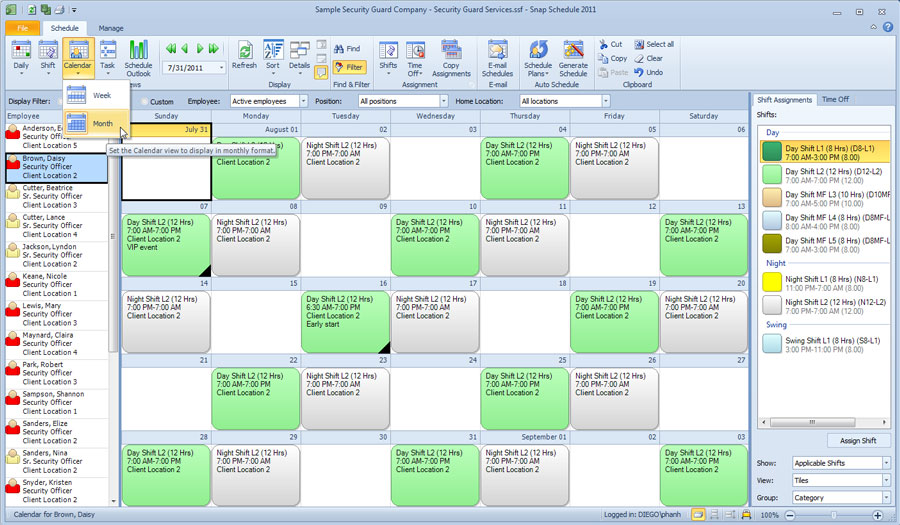
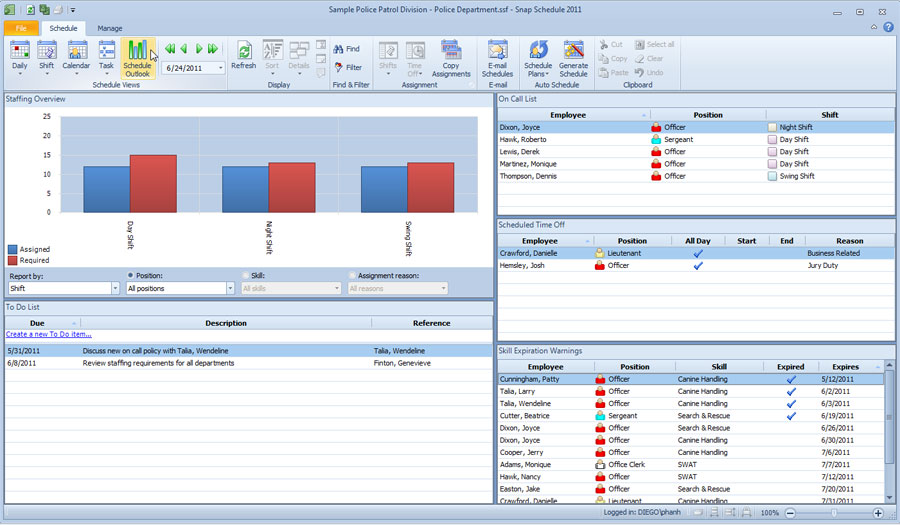
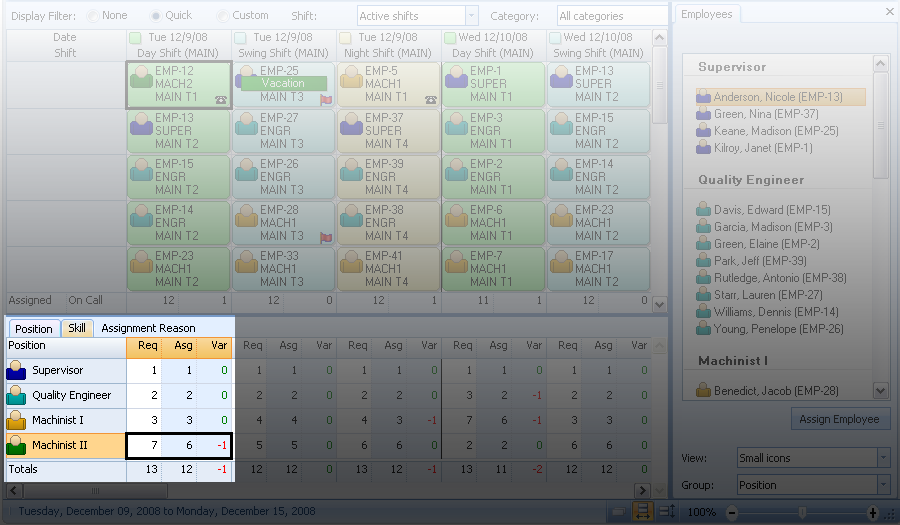
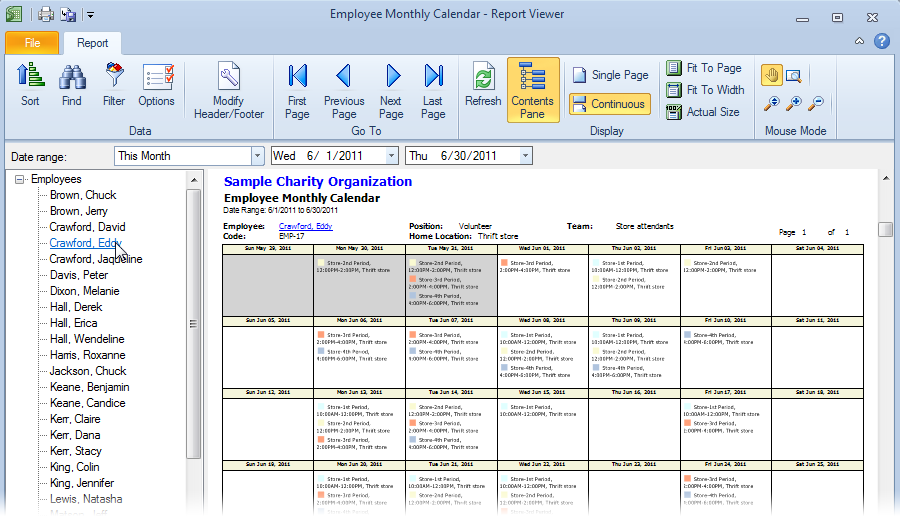
View assignments and schedule employees from four different vantage points. The Daily view shows all shift and time off assignments for each employee for each day in the specified period. You can view work schedules by employee or by shift. The Shift view shows employee staffing for each shift along with coverage summary for each job position. The Calendar view presents work and time off assignments for each employee similar to a calendar or monthly planner. The Task view shows all task assignments in a shift.
Easy drag and drop employee scheduling
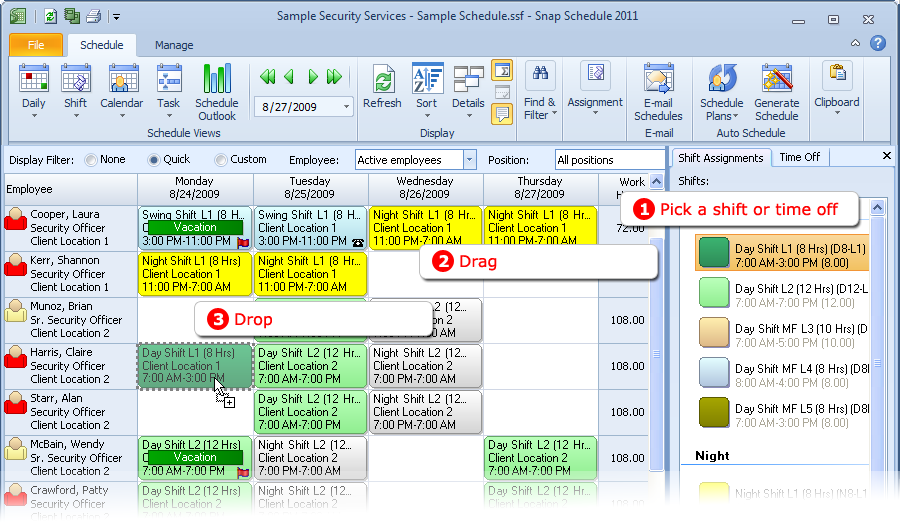
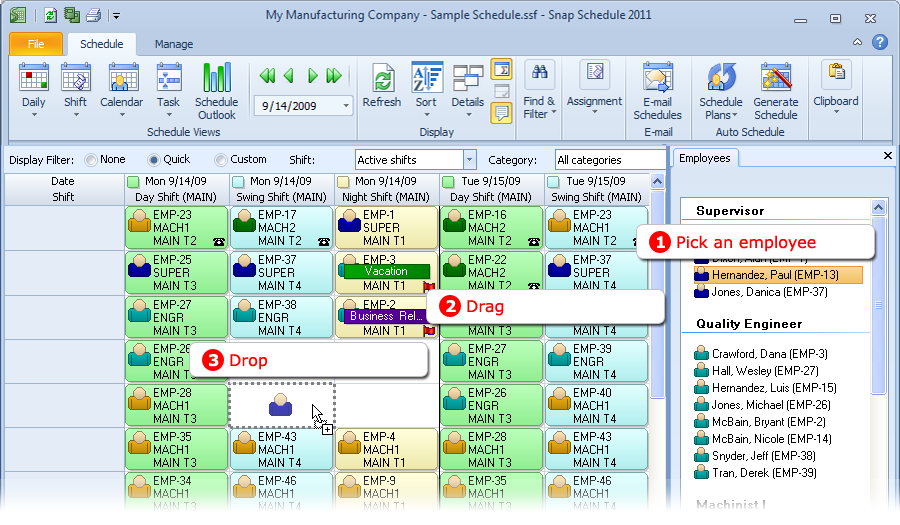
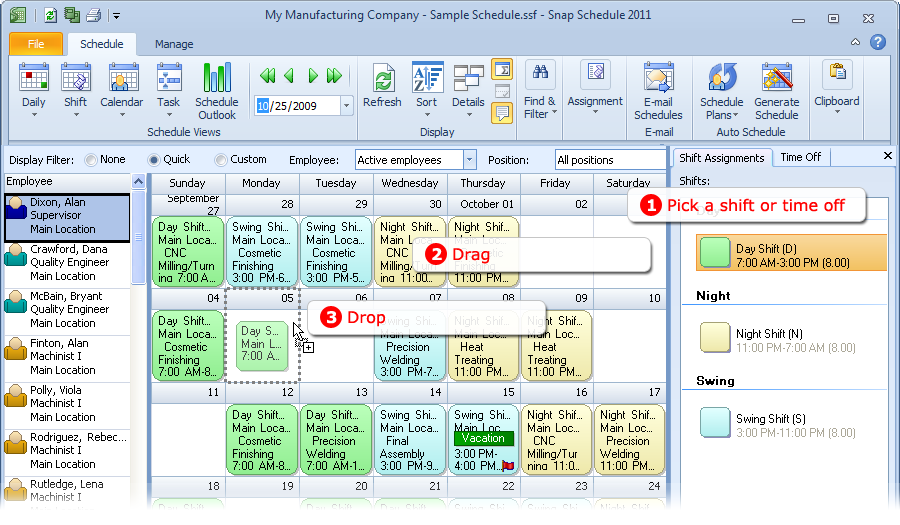
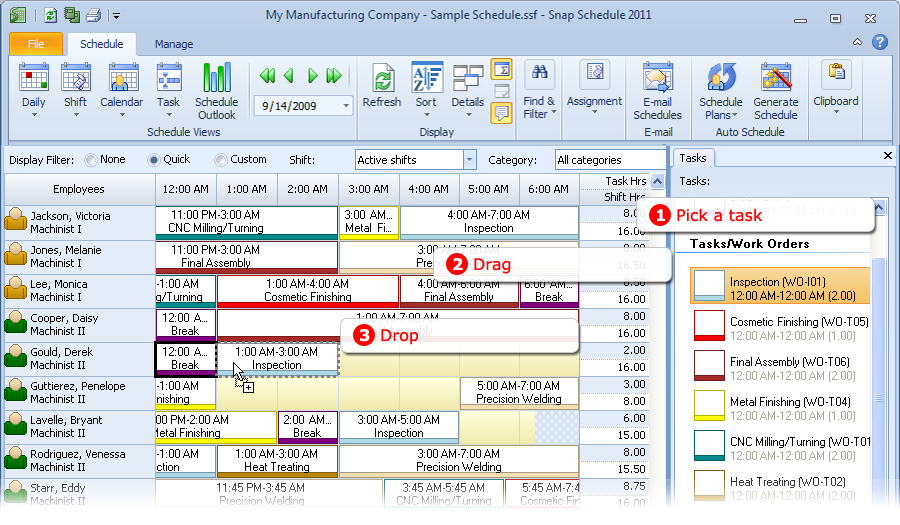
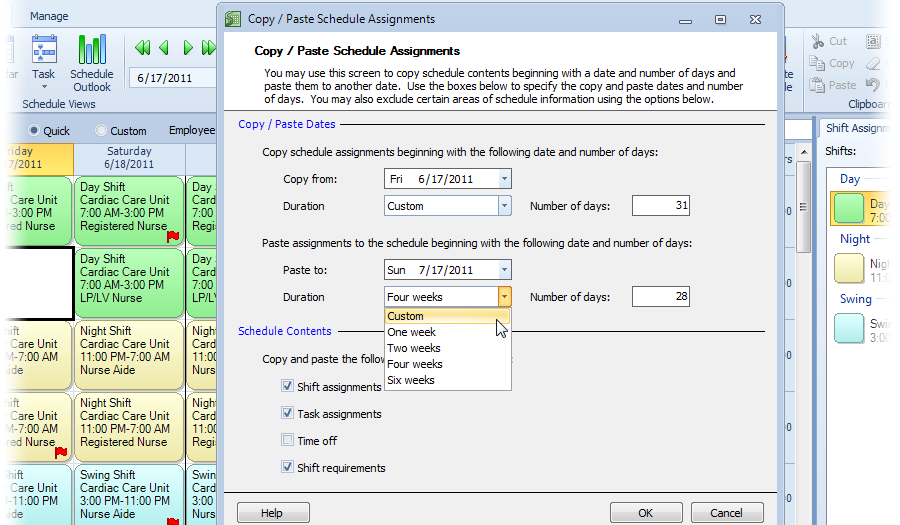
Drag & drop to easily assign shifts, mark time off, move or copy assignments. Split shifts, multiple shifts, paid time off, unpaid time off and on calls are all supported. Snap Schedule automatically checks and alerts you to any employee scheduling conflicts.
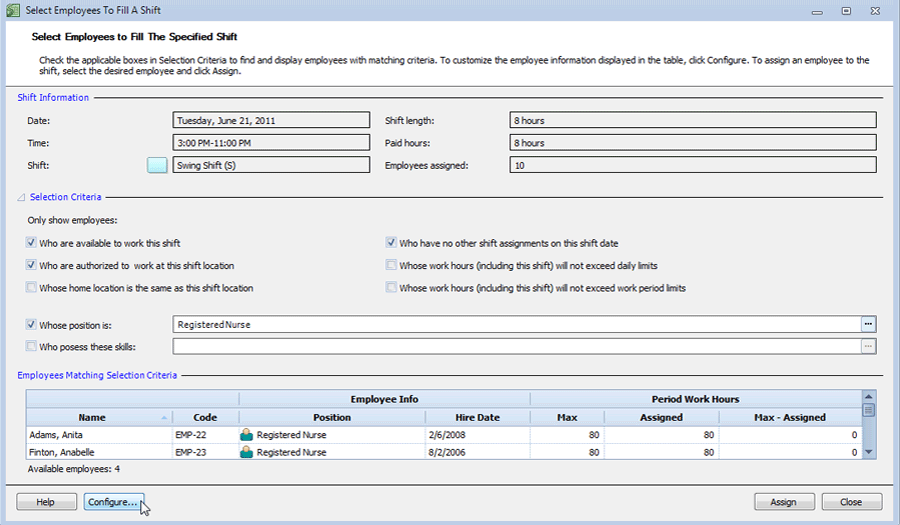
Select best employees for shifts based on availability, labor cost, work hour limits, and other criteria
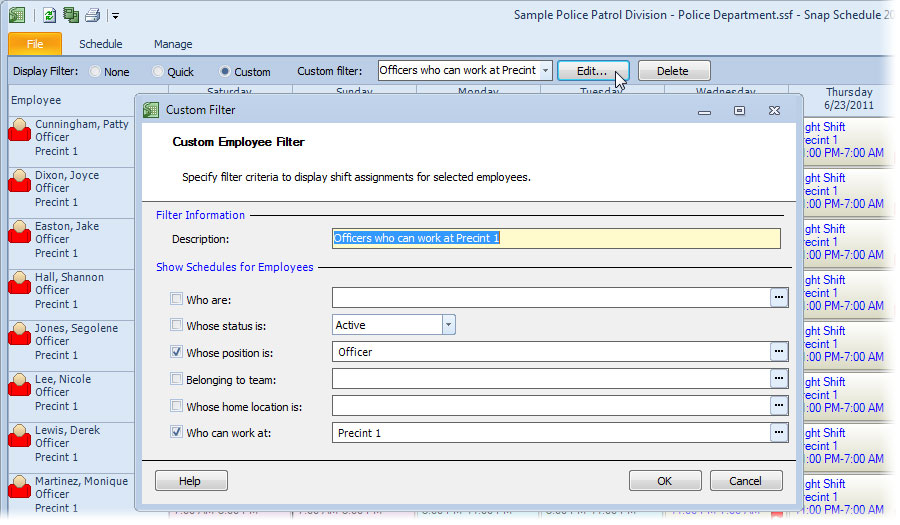
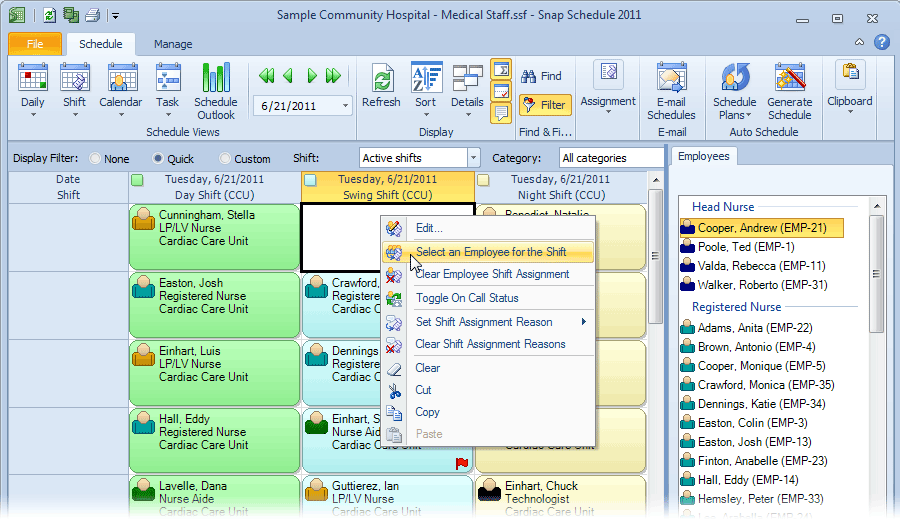
Simply specify your criteria and Snap Schedule will present a list of qualified employees for your shift planning purposes. You can fill a shift with the best available employees who meet your specific criteria.
Reduce labor costs, foresee and avoid overtime
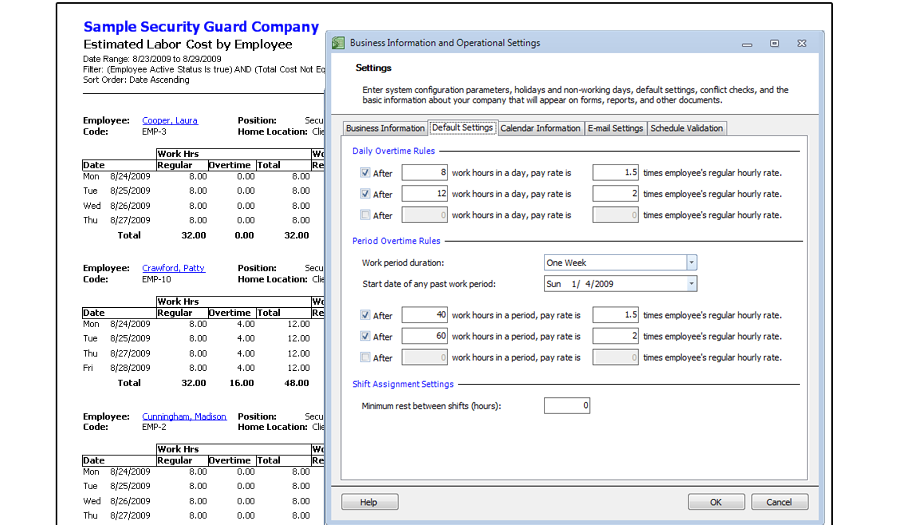
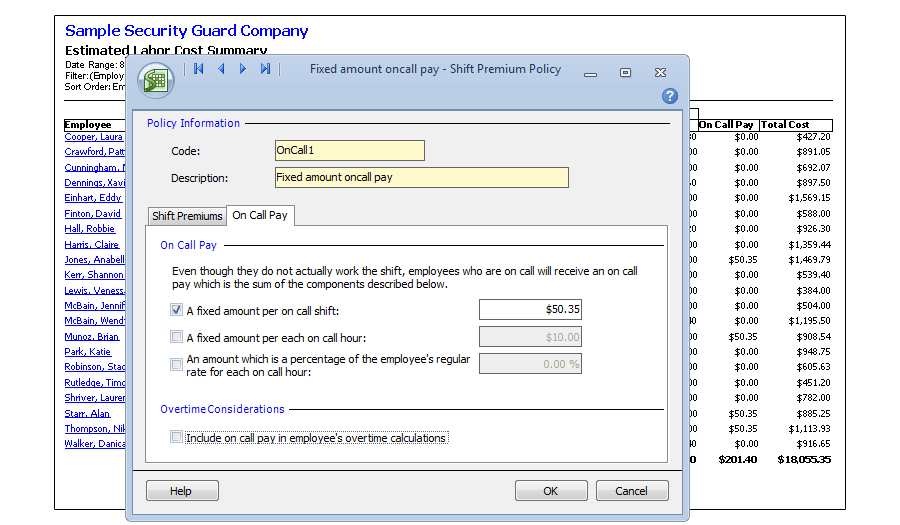
As you are making shift assignments, Snap Schedule automatically sums up employees’ work hours, calculates labor costs, and provides detailed cost reports so you know instantly if your are on budget. It's flexible overtime pay rules can help in complying with the US Fair Labor Standards Act (FLSA), trades union, and labor regulations.
Automatically generate schedules for industry standard and user-defined shift patterns
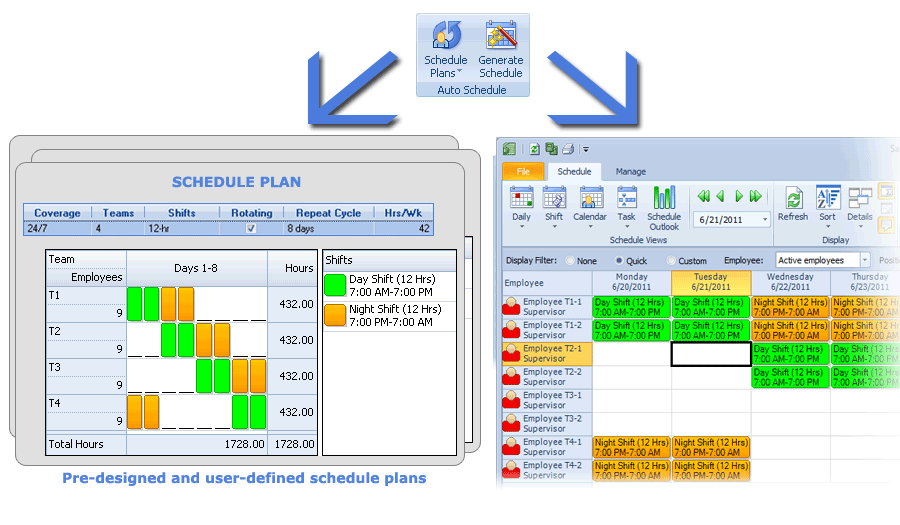
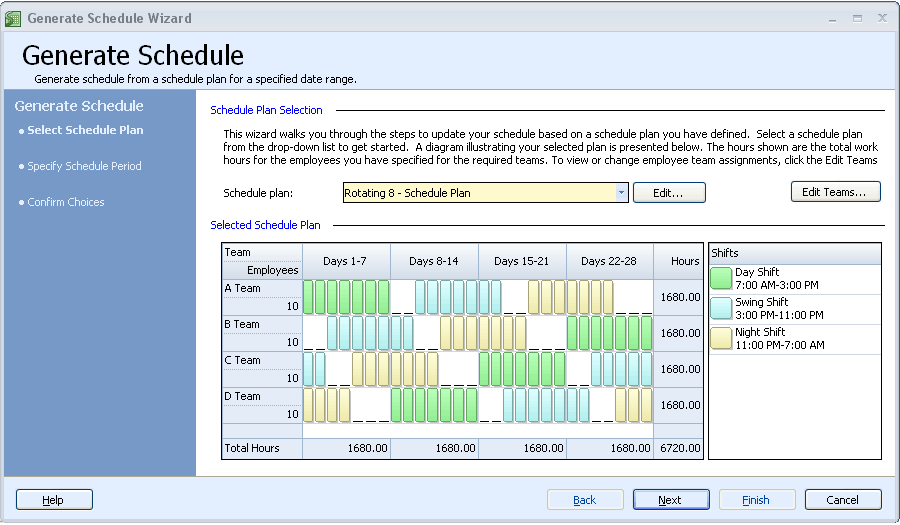
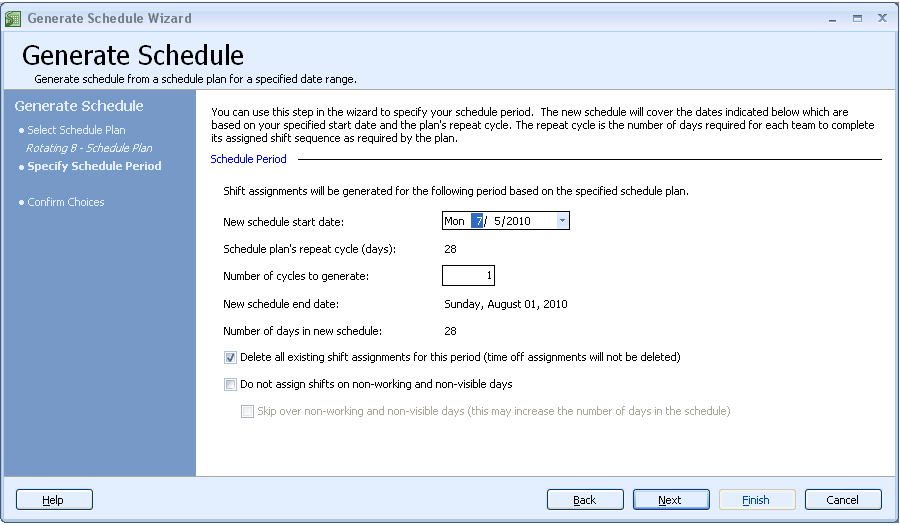
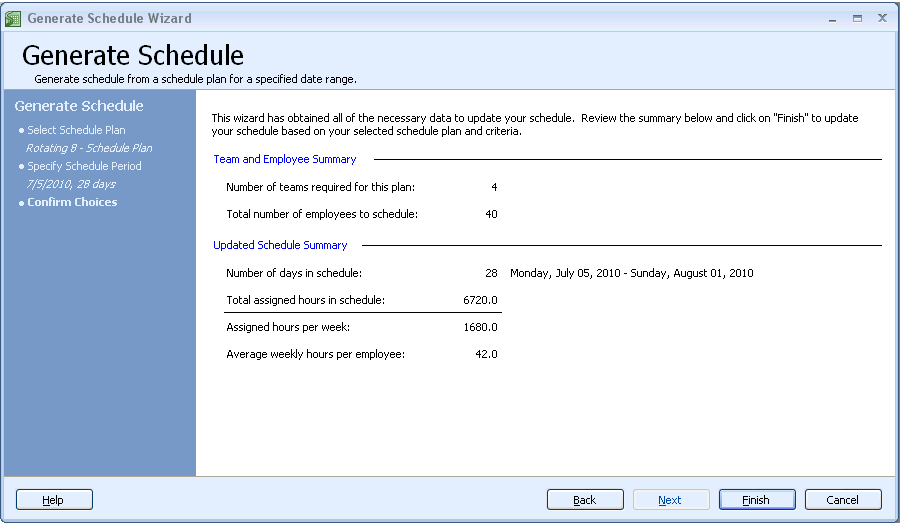
The Auto-scheduling Wizard saves time and speeds up employee scheduling tasks. You can easily model and generate any fixed, oscillating, staggered, mixed, and rotating shift schedule with user-definable schedule plans. Use built-in visual tools for shift rota design. With its pre-designed schedule plans, creating a new schedule is easy – select a plan, answer a few questions, and Snap Schedule does the rest!
Print, export, and email schedules to employees
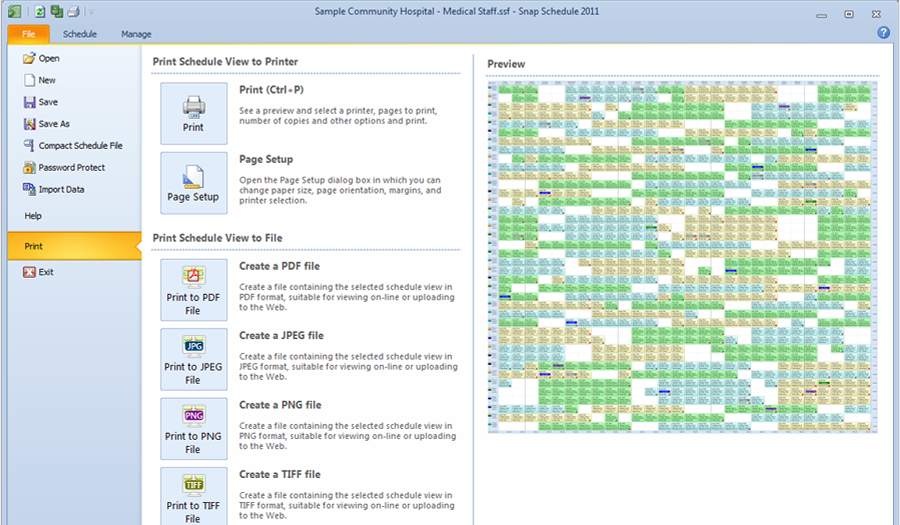
Automatically e-mail roster schedules. Print Daily, Shift, Calendar schedule spreadsheets, and shift assignment reports to communicate schedule information to management and employees. Easily publish shiftwork plans, work schedules and reports in PDF and a variety of other formats.
Extensive reporting capabilities
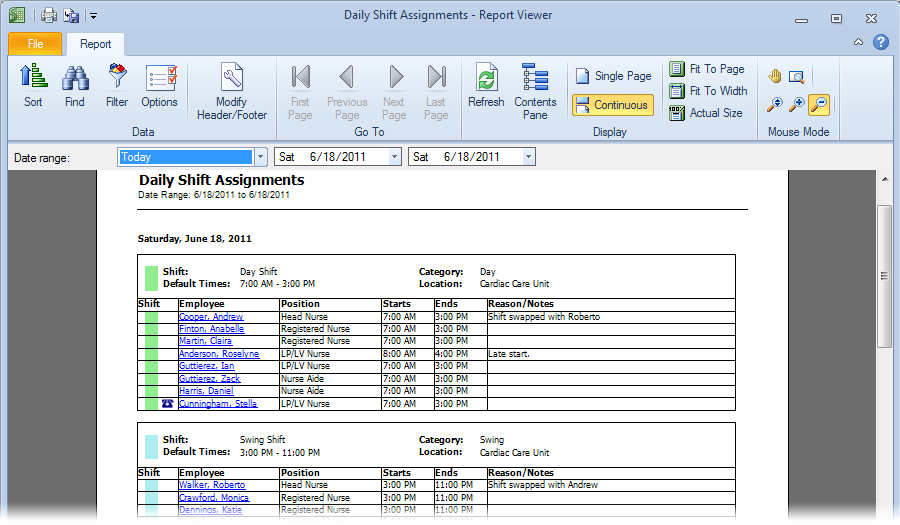
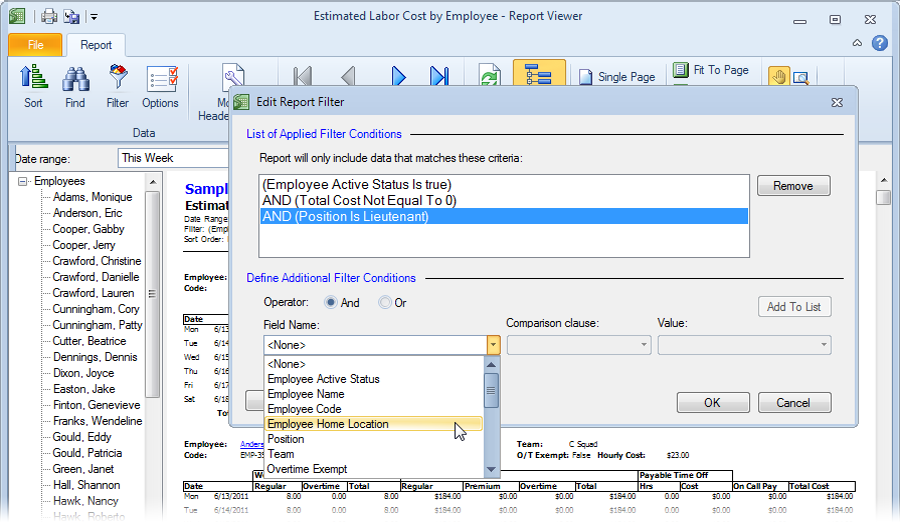
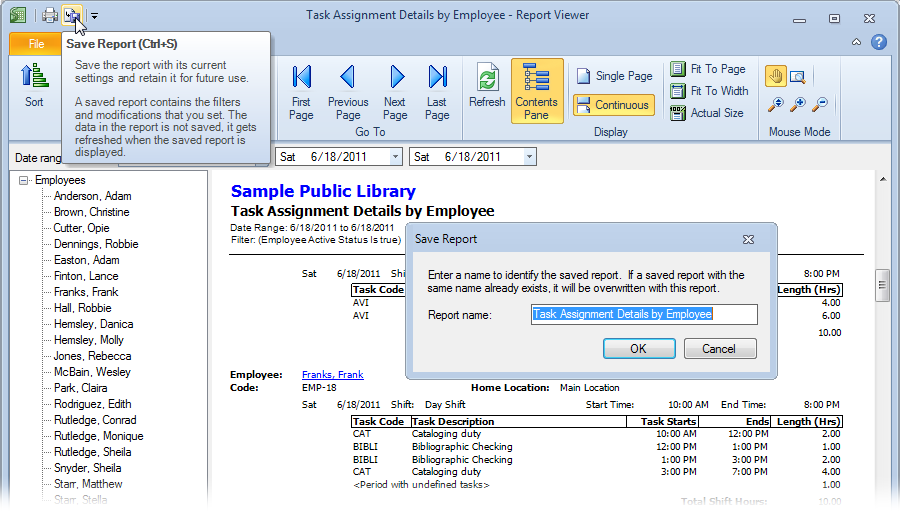
Reports are active, meaning you can drill-down on embedded hyperlinks for more details, include or exclude specific information, and make changes to the underlying data. Customize standard reports to fit your needs and save them for future use. Preview report data before printing. Export report data to Excel, PDF, RTF, and many more popular formats.














Try It For Yourself
Download Snap Schedule and try it free on your personal computer. The trial period starts on the day you first use our software and automatically expires 30 days after. You can use one of the sample schedules to evaluate the software features or enter real data and use Snap Schedule to schedule and manage your employees.
Download NowRequest a Personalized Demo & Consultation
If you prefer personalized online demo from the convenience of your office via Citrix GoToMeeting, we can do that too. We will schedule one of our product specialists to help you set up your schedule, walk you through the many features of our scheduling software, and answer your specific questions. There is no risk, no cost, and absolutely no obligation on your part.
Request a Demo